Research & records
Journal & firm tools
Alongside the strategy-research pipeline, VeriRun Lab includes a full trading journal — logging, imports, attachments, playbooks and goals — plus tools for prop-firm traders: a provenance-checked firm-rules browser and an evaluation tracker. This page tours all of it.
The journal
The Journal section of the sidebar has sub-tabs for logging, dashboards, a calendar, analytics, insights, playbooks, planning and more. Start with the log.
Logging a trade
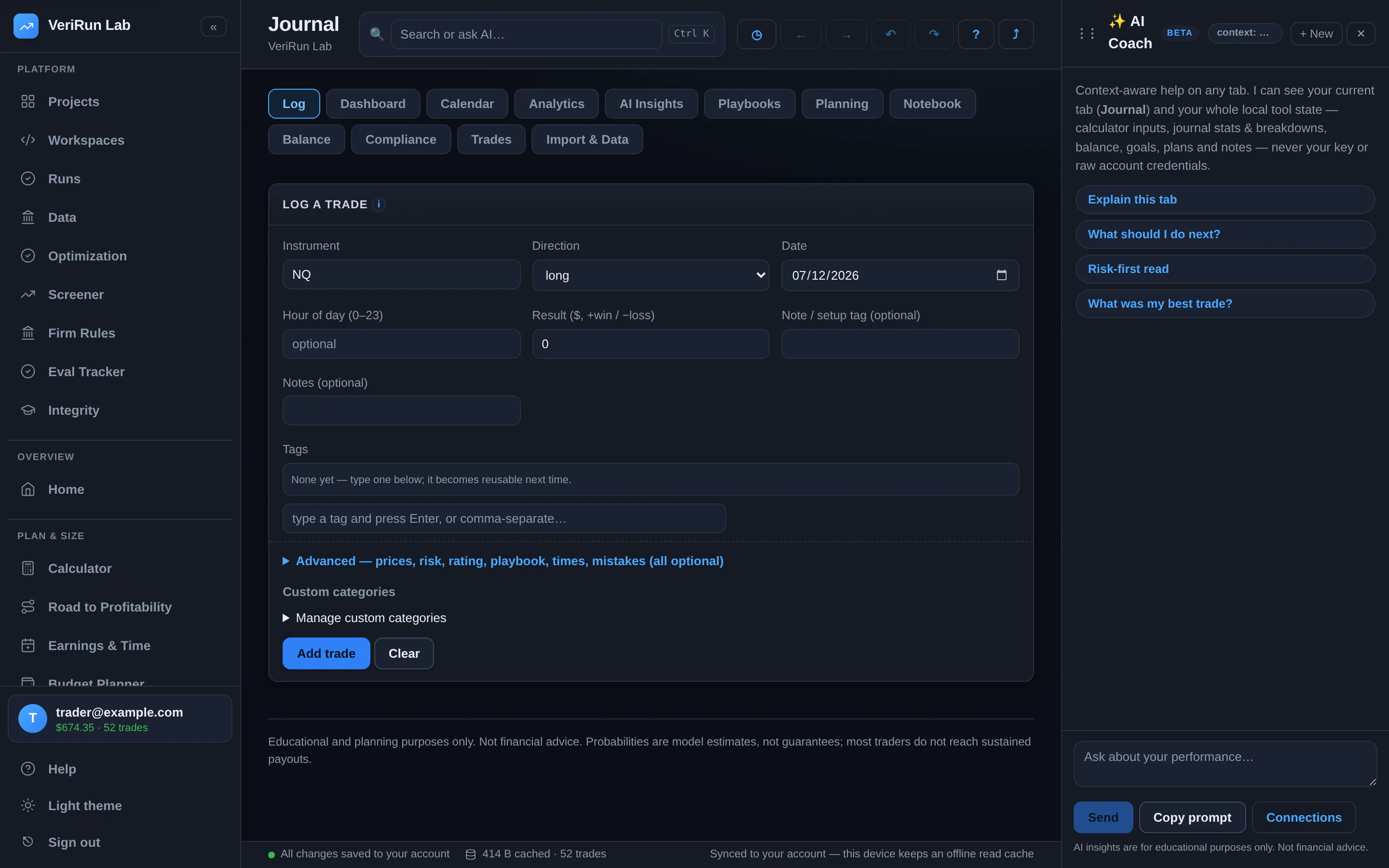
Log a trade keeps quick entry quick and detail optional. The core fields: instrument, direction (long/short), date, hour of day, result in dollars, a setup tag, notes and tags. An Advanced section adds everything a serious review wants: account label, quantity, entry/exit/stop/target prices, commissions, planned risk, entry and exit times, playbook, a 1–5 trade rating, mistakes, and your own custom categories. Press Add trade and it's in.
Edits are safe across devices: if you edit a trade that was saved from another device or tab after you loaded it, the app refuses to silently overwrite the newer version — it reloads the current trade and tells you, so you can reapply your change on top of what's actually there. Last save never silently wins.
Importing trades
-
Open Import & Data in the journal, and either drop a file or
paste rows. Supported files:
.csv,.tsv,.txt,.xlsx,.xls. Built-in readers cover common trading-platform fill grids and statistics or journal exports; Auto-detect (recommended) figures out the format, and a date-order option handles day-first vs month-first files. - Preview before committing. The import dry-runs first: “parsed 214 rows — 180 new, 34 duplicates (already in journal). Nothing imported yet.” Duplicates are detected and skipped, so re-importing an overlapping export is safe.
- Anything else via the column mapper. For any other spreadsheet, Import from any spreadsheet (map columns) lets you map your columns to journal fields — only a net-P&L column is required.
A NinjaTrader fill grid is stored with its P&L after commission (the commission stays in Fees; a fill that reverses a position splits its commission between the two trades by contracts), and its fill times — written without a time zone — are read in the time zone of the computer you import from, so each trade lands on the same trading day for everyone who views it. Re-importing a file you imported before commissions were deducted matches the older rows instead of adding them twice. Each file becomes its own import batch, and batches can be removed as a unit in Manage imports if something came in wrong. Very large files are capped (about 25 MB per import) — split exports if you hit it. You can also export your whole journal as JSON or pull trades from a broker endpoint you configure. Cloud-storage backup (Google Drive / Dropbox) is built but not yet switched on — the Settings block says so until it is.
Attachments: screenshots and voice memos
- Open any trade to attach chart screenshots (PNG, JPEG, WebP, GIF) — drop them straight onto the trade — or record a voice memo for spoken review notes.
- Limits: 10 MB per file, and a total attachment allowance per account (the app tells you when you're near it; deleting attachments frees space).
Playbooks
A playbook is a named, reusable trade plan: a name (“ORB retest”), a description, and rules — one per line. Tag trades with a playbook when you log them (or later), and the Your playbooks panel scores each one: trades, win rate, expectancy, net P&L, with a comparison chart. This is how you learn which of your setups deserves size and which deserves retirement. Deleting a playbook never deletes its trades — they just become unattached.
Planning & goals
- Goals — pick a metric, a period (today / week / month / all-time) and a target; progress bars track you against it.
- Daily plan checklist — per-day items with an adherence score, and an adherence vs results view comparing your high-adherence days against low-adherence days. For most traders this chart is uncomfortably persuasive.
- Discipline challenges — self-imposed rules (“no trades after 11:30”) tracked as pass/violation.
Reality tracking — is live matching the backtest?
Once you trade a strategy (live or forward-test) and journal the trades, the platform can keep comparing your realized results against the strategy's backtest — and say, in a stored, dated verdict, whether reality is keeping the backtest's promise.
Linking a tag to a reference run
You create the link explicitly, from either side: the strategy page's
Reality panel (Link to journal tag…) or the
journal's trades tab (Link to platform strategy…). Either way you
enter the tag your live trades carry (say orb-v3-live) and pick the
reference backtest run — the run whose stored trades your
realized trades are scored against. The picker offers the runs from the
strategy's own lineage, newest first — minus any run already anchoring
another strategy's link — and the platform never infers a link from tag
names. Unlinking lives on the strategy page.
What gets compared
Scoring starts once 20 journaled trades carry the tag with a usable R multiple — below that the panel shows honest progress (Tracking (n = 12 of 20)), not conclusions. R comes from each trade's journaled dollar risk; trades without one fall back to a price-based derivation — entry-to-stop distance × quantity × the instrument's point value, using the engine's own contract specs — and trades with neither don't count. Four checks then run nightly and after every import:
- Expectancy — where your realized average R falls within what the backtest's own trades predict for a sample your size.
- Friction — your journaled fees per trade against the run's modeled per-trade cost. Journal a Planned entry price on a trade (the field next to Entry price, also mappable on CSV import) and the metric adds your intended-vs-fill slippage on top of fees — one-sided, so a fill that beat your plan never counts against you, and priced only for instruments the engine has contract specs for (ES/NQ/MES/MNQ; others contribute fees only). No fee data means the metric is excluded, with its reason listed — never guessed at.
- Win rate — whether your live win rate has fallen significantly below the backtest's. One-sided on purpose: outperforming live never counts against you.
- Shape — whether the distribution of your realized R values has drifted away from the backtest's.
Verdicts append; nothing is overwritten
- The roll-up — In line / Drifting / Diverged — appends as a dated version beside the reference run's audit history. The backtest's own verdict is never touched, and a quiet night appends nothing.
- If journal edits drop the sample below 20, the verdict becomes Suspended — never silently stale — and scoring resumes when the sample recovers.
- The panel's density strip shows the evidence at a glance: the backtest's R distribution with your realized trades overlaid on it.
- Diverged links straight to the fills comparison and the regimes view for the live period — the two usual explanations (costs, regime).
- Unlinking stops the re-scores and preserves every appended verdict as history. While a link is active, its reference run refuses purge — it anchors your reality tracking.
Excursions — MAE, MFE, and the trade chart
For every journaled trade the platform computes the two numbers most post-trade reviews turn on: MAE (maximum adverse excursion — how far the trade went against you before it closed) and MFE (maximum favorable excursion — the best it ever looked). The trade table carries both as columns, plus the derived ratios (MFE/MAE, exit efficiency — how much of the best available exit you actually captured).
Every excursion value states where it came from. A small glyph next to the numbers distinguishes: computed from the platform's market-data catalog · carried in by your import file · estimated client-side from your own bars · pending (not computed yet — opening the trade queues the computation automatically, and a Compute button remains for re-runs) · and the honest empty state: computed, but no data covered that session. “No data” and “not yet computed” are deliberately different answers — the journal never blurs them.
Opening a trade shows the trade chart: real candles for the session around your trade on a real time axis, entry and exit marked on the candle that was open at their actual times (the same rule every chart on the platform follows), and — when your import carried them — the planned stop and target drawn as levels, so “did I follow the plan?” is visible at a glance. The chart loads clean — no indicators until you add them (VWAP and the rest sit one click away under Indicators, and your picks are remembered per trade). Its timeframe selector runs from 5s to 1h; picking 5s, 15s or 30s fetches the session’s 5-second bars (see timeframes). The chart footer names the data source and the exchange trade date it drew. Backfilling excursions over your history is free — it reads data the platform already has and never triggers a purchase.
Firm rules
The Firm Rules section is a browser of prop-firm rule sets built around one problem: rules change, and third-party summaries disagree. So every rule card shows its provenance — a verbatim quote, a link to the firm's own documentation, a retrieval date, and a verified / unverified badge. Where sources genuinely contradict each other, the conflict is surfaced, not silently resolved: you choose a reading — Strict (the safer default) or Lenient — and everything downstream is stamped with your choice.
The eval tracker
- Track an account. Pick the firm, the rule-set version (it is pinned, so later rule changes never silently alter your tracking), an account label — matching the account tag you use on journal trades — the account size and the start date. Press Start tracking.
- Resolve any rule conflicts the firm has (see above). Tracking won't start until every conflict has a chosen reading.
- Follow the lifecycle. The tracker moves through Evaluation active → Passed — awaiting funded account → Funded account → Payout eligible, with Breached and Closed as the exits. Events like Target met, Record breach and Payout processed are logged along the way.
Simulator outputs are estimates
Evaluation simulators run under the rule readings you chose and say so on every output: model estimates, not a promise of passing or payouts. The related Budget Planner section lets you model evaluation economics — profit target, drawdown, consistency caps, cost per attempt — before you spend real money on attempts.
The Calculator — prop-firm profitability from real trades
The Calculator models whether a strategy clears a prop firm's evaluation → funded → payout gauntlet. Beyond feeding it a modeled edge (win rate and reward:risk), you can replay an actual trade sequence through a firm's rules and see the money banked — payouts minus fees — not just a probability.
Trades from picks where those trades come from, and a line under it says what is replayed (“27 trades from 1 account · Live · 1 Jun – 17 Jun 2026”):
- Journal (the default) — replay the trades you actually logged, with their dates, direction and size carried through, so your own record answers the what-if. A trade's worst and best price (MAE/MFE) count against the firm's limits only when they were measured inside the trade: a trade logged without entry and exit times has only the whole session's price range, which stays in your journal as context while the replay checks that trade on its balance and says so. One prop-firm account is replayed at a time: Account starts on your most-traded account and Origin on your live trades (backtest runs you imported into the journal are Backtest imports); choose more than one account and the panel says they are merged into one. With the Data Lens on, one of its runs is replayed at a time.
- Backtest run — choose one of your completed backtest runs (type to search all of them; more load as you scroll); its recorded trades are replayed through the firm lifecycle. This is the same trade data the run's own profitability view uses, so a research result flows straight into a prop-firm what-if without re-keying anything.
- Manual session — replay the trades you logged in a saved manual backtesting session, each on the Trade date it was logged with (a session whose trades all share one date is flagged, with a link to fix the dates). Win/loss entries are replayed only once you give the dollar value of a win and a loss, and a session is only ever listed for the account that saved it.
Either way, every firm rule comes from the firm's stored rules in the firm-rules browser — the version every calculation uses, with a badge beside the firm saying how far it can be trusted (“In use · 9 of 14 checked”, “Not yet reviewed”, or how long ago the rules were read). Under the firm, Configuration, Bought and Rules as of pick which stored version that is — the firm's plan (MyFundedFutures' “Rapid EOD · 50K” or “Builder · 50K”), when you bought the account (“Bought up to 24 Aug 2026” or “Bought from 25 Aug 2026”, where the firm changed its rules for new purchases) and the version in force on a date. The default of each is the version used with nothing picked; a choice with only one option reads as plain text saying why, and your choice is saved in your account. Your rule edits stay with the firm when you change version (“Your 2 edits still apply to Rapid EOD · 50K.”, with Reset my changes). Where the firm's sources disagree, the reading checked against the firm's own site is used, else the stricter one, and the Assumptions say which; the rule's Sources disagree badge shows both readings and lets you use the other one. A value the firm doesn't state is left empty and marked — a fee it doesn't state counts as $0 — and any value the panel assumes is named (a firm that states no profit split is replayed at 90%). Change a rule and the field shows “Your edit · firm: $2,000 · Undo”; your edits are saved per firm in your account, so they follow you to every device and never reach the next person on a shared browser. The Rules block opens collapsed, with the rules in force as a short line of chips — press one to go straight to that rule — and counts of the values the firm doesn't state, the values assumed, the sources that disagree and your edits — each opens a list that takes you to the rule (an edit's own words too, with Undo beside them); press Edit rules to see every box. Under each box a small chip says where its value comes from — “Firm · 1 Jun 2026” (the firm's stored rule and its date, or “Firm · not checked”), “None · Firm · 1 Jun 2026” (the firm states there is no such rule, or “None · Firm · not checked” — the firm states there is no such rule, not yet checked against its site), “Not stated” or “Not stated · counted as $0” for a fee, “Your edit · firm: $2,000 · Undo”, or “Default” for one of your own replay settings. Every rule the replay applies has its own box, in six groups you can open and close — Evaluation, Risk limits, After a blow-up, Funded payouts, Funded costs and Overnight holds — each naming the values in force in its header: among them the funded account's own drawdown, floor test, breach test and contract limits (behind “Funded accounts use different risk rules”; off, they follow the evaluation's), what reaching the daily limit does in each phase, the funded daily limit, contract limits, the qualifying-day minimum, where the floor goes after a payout, how the best day meets the consistency limit, payouts per account, the payout rules (the profit needed in each payout cycle, each payout's share and what it is a share of, the lifetime payout cap and what follows it, what follows the last payout, the wait before the first payout, the split by amount withdrawn, where the consistency ladder ends, the trading days per cycle, the safety net's payouts and free resets), the firm's overnight rules and cut-off time, and the rules the replay reads for each account's life — the funded starting balance and same-day start, what counts as a trading day, the inactivity rule, how the floor is tested at the close and when the balance breaches it, the funded and shared contract limits, what the firm does with a trade over a limit, LucidScale's growing daily limit and the share of profit from very short trades. A firm's scaling plan is a table you can edit, one row per level, saved once every level is complete; the firm's own wait after a failed account (“After N trading days”) is a choice with a box for its number. A rule that only matters beside another stays out of the way until that one is set — and a stored value is never hidden: it says “Applies once … is entered” with a link to the rule it waits for. Where a firm sells its daily loss limit as an On / Off choice at purchase (Lucid’s LucidScale plans, MyFundedFutures Flex 50K), one “Daily loss limit” switch turns the whole set on — it starts off, as the firm leaves it. Type a lock that is really the balance that triggers it (52,100 with a $2,000 drawdown) and the box warns you, with a one-click “Use 50,100”. A straight-to-funded account the firm sells without a price reads “Price not stated · Set a price”; one it doesn't sell, or doesn't price, reads “Not offered by this firm · Set a price” and can't be picked until you enter a price. And every one of your own replay settings now has its control too: Replay options adds five headings of them, and “When an account goes inactive” sits beside the firm's inactivity rule. After the replay options, Payouts holds your payout rules, for every firm: “Earliest, maximum” by default (a payout at the first close the firm allows, the most it allows). Pick a preset (Weekly, Monthly, Bank at new highs, At the end, Conservative, Balanced and more) or build your own: + Add a rule, then choose when it asks (every Friday, a day of the month, chosen dates, a new high, a losing streak, …), how much (the most the firm allows, a fixed amount, a share, everything above a cushion, …) and any conditions (“Only if at least $500”, “At most 2 a month”, …). Rank the rules by dragging them (or Alt+Up / Alt+Down, or Move up / Move down in a rule’s menu), switch one off, duplicate or remove it — Remove, Duplicate, a preset and Reset can be undone. A rule is saved once every part is filled; until then it says what it needs and Calculate waits. After a calculation, Assumptions names each rule the replay used in one sentence, every payout on Every trade names the rule that took it, and a rule that never asked says so under it. The highest-ranked rule that says “now” decides the amount, one payout per close, and the firm’s rules still decide every payout: on Every trade a payout the firm refuses shows on its day’s row as “Payout refused”, its words naming the firm’s reason, and a payout asked on a Friday and paid on a Thursday says both days. Under every setting, What is this? explains what it is, what the replay does with it, what an empty value means and where a firm states it, and Example walks through a worked example step by step — marked “Checked by the replay” when a test runs that example through the same engine as your results, as every example on the panel is except five that compute no figure (the Firm picker, “Recalculate automatically”, “Show amounts as”, whether the firm sells a straight-to-funded account and your own firm’s name), which say why. In the payout rule builder each rule’s trigger, amount and conditions have their own lines too, for the ones you chose, and so do the Preset, how the rules combine, a rule’s name, its “Use this rule” switch and its rank; a “Sources disagree” badge has its own line beside it, on how you choose which reading of a firm’s rule your results use. Ask the AI Assistant and it explains any setting in the same words. The output is labelled an estimate — never a promise of passing or payout.
The panel has two views, Summary and Every trade (with the number of trades), under one shared firm-and-rules block, so switching never reloads your rules or recalculates. On a run's Profitability tab the open view, the account path, and on Every trade the trade and the range you are looking at are part of the page's address, so reloading, going back or sharing the link opens the same view — and changing them (a click on a trade, a step, a zoom, Play stopping, switching views) keeps the page where it is. Every trade opens on the same Account path choice as Summary, each path with what it kept, so you can switch paths without leaving it (each path keeps its own filters: switching back brings them back, and it says so). It replays your trades one by one: what you had kept at the selected trade, the final figure beside what the trades made on their own (“Backtest alone +$6,950.00”), the meters for room to the floor and the day, one chart of the balance, each trade's P&L and the money kept (Ctrl + wheel zooms it, a drag pans it once zoomed, a plain wheel scrolls the page) — every time shown in your own time zone, every day the firm's trading day — a slider and the ledger of every trade grouped by attempt and day, then Tables (the three paths compared and each account's own total, in colour: each attempt's outcome as a coloured badge, amounts green or red by their profit, each account's total highlighted), Export replay and Open full view, with a Density control for this page; in Backtesting it opens in the full view. Play (▶ between the previous- and next-event buttons) walks through the moments that mattered on its own — from event to event, or day by day — and pauses as soon as you click or press a key. Its filters narrow the view to an attempt, a phase, an account, an outcome, the days that decided something, the days a payout waited on, wins or losses, close calls, the trades not replayed or a range of dates; the trades left out fade on the chart. Above 50,000 trades it draws one row per exchange day, with Draw every trade anyway to draw them one by one for that source. Amounts in its toolbar (the same choice as Show amounts as in your replay options) writes every balance, floor and target either as the account's balance ($51,075, floor $50,100) or as profit from that account's start (+$1,075, floor +$100); the room, the P&L and what you keep read the same, and it never recalculates. Summary opens on the three account paths as cards, then Money you would have kept with its verdict — Pays, Survives, unpaid, Does not survive or Net-negative — with what your trades made on their own, no firm rule applied, right under it (“Backtest alone +$6,950.00 · 27 trades”) so you can compare the two at a glance, then a waterfall of the payouts, each fee and what was kept; beside it, Order luck deals the same trades (only the ones your trade choices keep) in 1,000 random orders when you ask (your workspace admin sets the number), shows its progress (“312 of 1,000 orderings”) with Cancel, and gives each share as a whole percent with its ± (“65% · ±3 pts”, the 95% range rounded up to a whole point; at 0% or 100% it is 300 ÷ the orders, rounded up — ±1 at 1,000); when your list is so short that every possible order fits, it replays each order once, yours included, and says so (“4 of all 6 possible orders (including yours)”). Under it each attempt is a segment you can open — evaluation and funded in clearly different fills, a funded attempt with a bar along its top, and how each attempt ended (passed, ended, paid out, or still running when the trades ran out) marked on it, the ended ones also at their right edge. Under the rules, the Calculate bar says what is stopping a run (“Fix 1 rule to calculate” takes you to that rule) or when the results are from; on a phone it stays at the bottom of the panel. Calculate replays in the background, so the page never freezes: a long replay says what it is doing (“Replaying 10,233 trades · 3 account paths · 1.4s”) with Cancel, which keeps your earlier results.
Your own firms sit beside the platform's in the firm list. + Enter my own firm… starts one right in the panel: it stays on your device until it has a name, an account size, a max drawdown and a profit split, then saves to your account (and to Firm Library › My custom firms). Change a rule of one of your own firms and the change is saved into the firm itself (“Saved 12:07”). On any platform firm, Save these rules as my firm copies the version you are looking at with your edits, keeps your choices on the firm's disagreements, and puts the original back to its values — with Undo. Deleting one of your firms asks first and can't be undone. At your plan's custom-firm limit both are switched off, with a link to your firms so you can delete one you no longer need.
Results appear on their own: with Recalculate automatically on (the default) and a trade list of up to 10,000 trades, the panel calculates as soon as the firm's rules load and again a moment after every change you make — a rule, a version, a replay setting, another firm. With the switch off, or a longer trade list, results wait for you to press Calculate, and a change marks them out of date with “Inputs changed: Max drawdown” and a Recalculate button; the bar says why (“Automatic recalculation is off”, or “12,408 trades is above the automatic limit of 10,000”). Nothing runs while a rule still needs fixing. The switch sits at the end of your replay settings, above “Payouts: Earliest, maximum” — the one payout policy the replay has today.
The replay judges the trades the way a firm does. Every drawdown floor is checked after every trade — on the balance and, when the trade's own worst price was measured, on that price — and a breach ends the account on that trade; the next account starts at your very next trade, the same day, with its fee and a day of its own. In Replay options (or the assistant) you can make it wait for the next trading day or a number of trading days instead, separately after a failed evaluation and after a failed funded account; where a firm states its own wait (MyFundedFutures Builder after a failed funded account: after 2 trading days) the replay follows it until you choose, and the Assumptions say which rule was used. The same way you can replay only some of your trades — from one day and up to another, by instrument, tag, strategy or side, or only those entered between two New York times — and the Assumptions say how many trades each choice left out, while the line under the panel's title says “22 of 27 trades (From / Up to)” with the dates and the strategy's own net of the trades replayed, so “makes $4,900 on its own” in the reading compares like with like. You can also cap what the replay spends: stop before the fee that would take the firm's fees above an amount, buy at most a number of evaluations (resets included), charge or skip a start due just as your trades run out, stop until you enter the fees a firm doesn't state, subtract your own monthly costs (a data feed, a platform) from what you keep, and choose a new evaluation or the cheaper of the two after a failed evaluation — and the reading says where a limit stopped the replay. You can assume a worst price for trades that have none measured, set your own daily loss and profit stops (the rest of the day isn't replayed once one trips), and choose what happens to a trade over the firm's contract limit — replay and flag it, apply the firm's consequence, leave it out, or scale it down to the contracts that fit. A take-home goal says whether, and on which day, the take-home reached it. Each of these is a setting in Replay options, under five headings — After a failure, Which trades are replayed, Spending and fees, Your own limits, Goal — saved to your account for every firm and marked “Default” until you set it, with Reset and Undo; a value that can't be kept is named in the field and not saved, and the group's summary counts how many you changed. “When an account goes inactive” sits with the firm's inactivity rule in Evaluation. Where a firm says how it tests its floor — open losses during the day, closed trades only, or only at the day's close — the replay follows it (your own floor-check setting still wins), and it follows the firm on whether a balance exactly on the floor ends the account and on where a breached position is closed; a funded account a firm starts at $0 is shown in the firm's own numbers. A daily limit applies per phase and either pauses the rest of the day or ends the account, and a trade whose worst price reaches it is booked at the limit. An evaluation passes at the trade that reaches the target — at a firm that activates the funded account at once, the rest of that day's trades count on the funded account — and where a firm has an inactivity rule, an account that goes too long without the activity it asks for is flagged, or, if you choose, closed on that day as the firm would close it (the Assumptions name your choice). Where a firm states contract limits, the replay adds up the contracts open at once at each trade's entry and flags a trade over the limit (it is replayed as it was); a funded scaling plan sets the limit, and for some firms the daily limit, from each profit level, and a daily limit that grows with the best close grows in the replay too. Above the results, the replay names what a firm would notice, without changing a figure: trades over its contract limit, accounts that went inactive, trades entered after its daily cut-off, the share of your profit made by trades held 5 seconds or less, trades with no exit time (replayed on the day they opened; whether they were held overnight can't be checked), and a lifetime payout cap the firm says was reached (later payouts are forfeited); on the trades over the contract limit, held overnight or with only a session price range, Show them opens Every trade on just those trades, as the source line's “not replayed” counts do. By default a trade still open at the 5:00 PM ET close ends the account (your replay settings, which the AI Assistant can change for you, can count it on the day it closes or opened instead; the panel then says how many trades were held overnight). Days are exchange days: a Friday-evening trade counts on Monday, a holiday session on the next trading day. Payouts are decided at each day's close with every firm gate (qualifying days of the firm's minimum profit, payouts per account, consistency, caps, and where the firm states them the profit and trading days needed in each payout cycle, the wait before the first payout, a share of the profit per payout and a lifetime payout cap), and a payout takes the whole withdrawal out of the account: after an $850 payout from $52,950 the balance is $52,100, with the safety net still in it — the Tables’ Attempts “End balance (after payout)” shows that balance. A payout never takes the balance below the account's floor: where a firm keeps no safety net and fixes the floor above the starting balance at a payout, the payout stops at the floor, and a payout that leaves the balance exactly on the floor says so — any loss then ends the account. After the last payout a firm allows, the account keeps trading without payouts, you move to a live account — the replay stops there, and what the move pays isn’t modelled, so the balance left isn’t counted — or the firm closes it and the next account starts, as the firm states; where it states only the number of payouts, the replay assumes the move to live and says so under Assumptions. Free resets a purchase includes are not charged, and where a firm pays the first part of each account’s withdrawals at its own split (Apex Legacy: all of the first $25,000, then 90%), each payout is paid at the split of the part it falls in. Where a firm’s own pages disagree on a payout rule — Apex Legacy’s consistency rule measures since the last payout, its example the whole profit in the account; LucidFlex’s 50% payout share is of the profit in its table and of the balance in its text — both readings are kept, the stricter one is used, and you can switch to the other in one click.
The AI Coach
The AI Coach section is the same AI Assistant you get from the side panel, opened on your trading. It is a full conversation with the assistant's own tools, which means it does not just see the numbers this browser has loaded — it can go and read anything in the app you can read, as you, through the same permission checks the screens use: your runs, your projects, your market-data coverage, your quotas and your journal. Quick coaching prompts drop a ready-made request into the message box; nothing is sent until you press Send.
It runs on your configured AI connection (Settings → AI keys) — your own provider key, or a platform-provided model where one is enabled — and spends from your AI credits like any other model call, with a balance you can see. Treat it as a review partner, not an oracle: it reasons from your journal, and it can be wrong.
Reading trades off chart screenshots
On the same section you can drop chart screenshots and have your AI read the entry, stop, target and exit off them. Each trade it finds is shown beside the exact image it was read from, so you check it before anything is saved; importing adds them to the journal as ordinary trades, and duplicates are skipped.
This needs a model that can actually see images. If the one you picked is text-only, the app says so and points you at the model picker — and there is always the offline path: copy the extraction prompt, run it in any AI that reads charts, and paste its answer back.
AI day recaps and trade notes
Two smaller writing helpers use the same connection. The journal's day view writes up the day you have selected — what happened, then the prioritised next steps — from that day's own numbers. A trade's detail panel drafts the note for that trade and can add it to the trade's notes; it appends, so it never overwrites what you wrote yourself. Both say which model answered, and both offer a copy-the-prompt path if you have no key connected.
Beyond the journal
The sidebar's other planning and learning sections — Road to Profitability, Earnings & Time, Budget Planner, Plan Lab, Risk Tools, the Futures Guide, Glossary and more — are self-explanatory interactive tools that share the journal's data where relevant. Explore them from the sidebar; each explains itself on screen.