Build
Writing strategies by hand
The workspace is a real IDE in your browser: a file tree, a Python editor with live intelligence, tests, snapshots, and run buttons. This guide explains the layout, what every file in a strategy workspace does, the contract your strategy code fulfills, the market data it can read, and the safety rails around all of it.
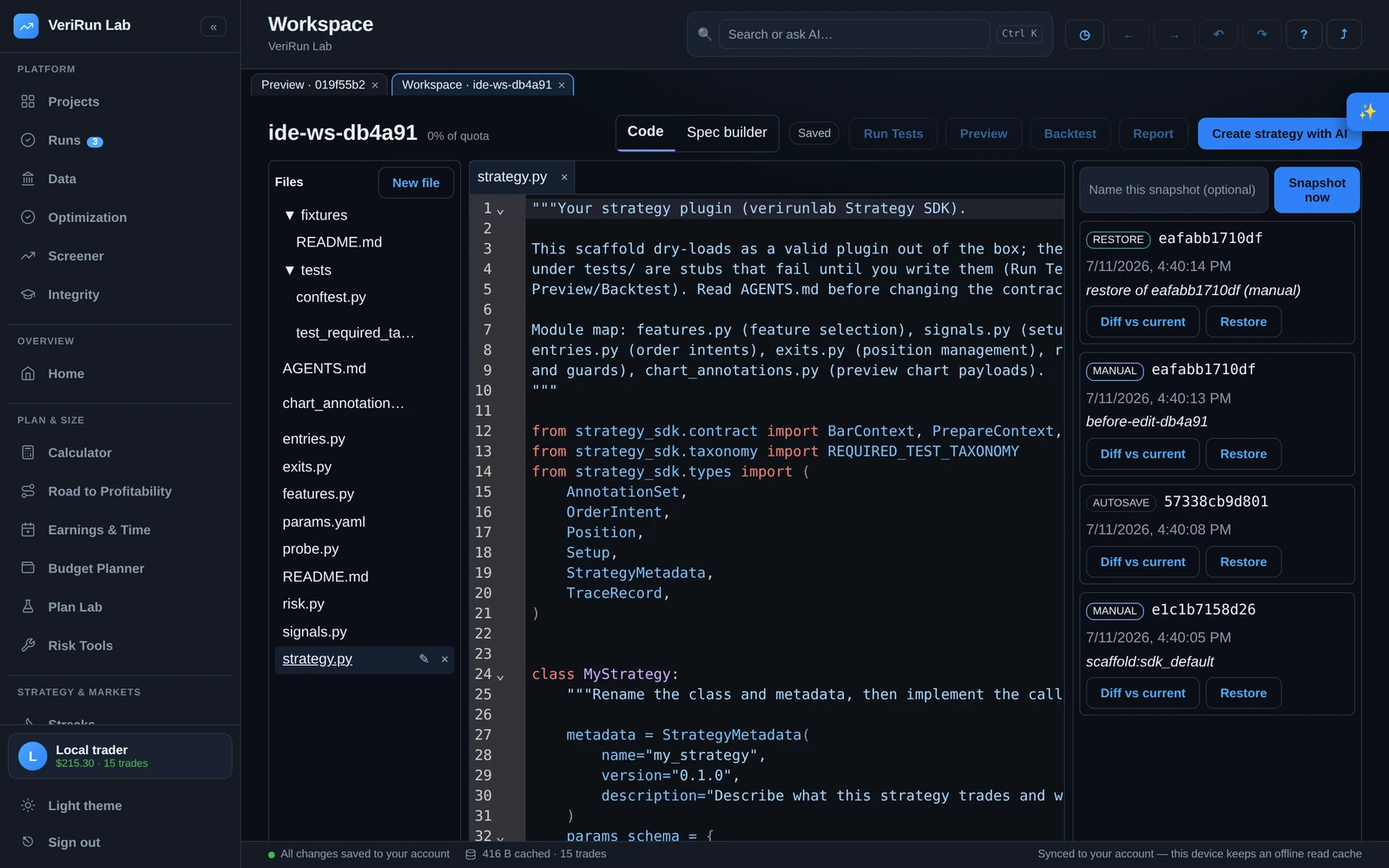
The workspace layout
- Header — the workspace name, a storage-quota chip (“N% of quota”), a mode toggle between Code and Spec builder, the autosave chip, the run buttons (Run Tests, Preview, Backtest, Run Notebook), Strategy summary, and Create strategy with AI.
- Left — Files. The file tree, with New file, rename and delete. A dot marks files with unsaved changes.
- Center — the editor, with tabs for each open file.
- Right — the side panel, switching between the snapshot history timeline and the AI builder.
- Bottom — the panel strip with five tabs: Problems (diagnostics from the editor, the import lint and the strategy-contract checks), Logs, Artifacts (files produced by runs), Tests (per-case results), and Outputs (notebook run output). All panes are drag-resizable.
Reading a strategy at a glance
Strategy summary in the header opens a read-only panel of what the strategy in this workspace actually declares — you never have to reconstruct it by reading the files. It lists the strategy's name and its own description, every parameter with its type, default and allowed range, each market-data feature key checked against the live catalog (a key the catalog has never heard of is flagged right there, instead of failing later in a run), the dataset schemas and session calendar a run will need, the instruments it supports, which contract callbacks are implemented, and the newest saved version with its test result — including a warning when you have edited the files since that version was cut.
It is read from your current files every time you open it, so it can never describe an older version of your code, and it costs nothing. If a file has a syntax error the panel still opens: it names the problem and the line, and shows what your last saved version declared.
The same panel also answers where this came from. Under the strategy’s identity it shows How this strategy was made — the original prompt the code was generated from, word for word, the model that wrote it, and whether anyone has edited the code since. If a prompt was never recorded the panel says so plainly instead of leaving a blank, and it never reconstructs one. The How this was made button in the toolbar opens the same block on its own.
The panel is honest about its limits. The entry and exit RULES are Python — no part of the strategy contract declares “go long when the 20 EMA crosses the 50” — so the panel says so plainly rather than inventing a description. For that, an optional Explain with AI button reads the code and describes what it is trying to do in plain English. That text is labelled as written by AI and stamped with the exact version of your workspace it described, so an edit afterwards marks it stale instead of leaving it looking current. If your strategy source is larger than one AI request can carry, the explanation also names the files the model was never shown, instead of quietly describing only part of your code. It uses one call from your AI quota; the panel itself works with or without it.
What each file does
A scaffolded strategy workspace (whether created by the AI builder or from the template) contains a small, opinionated set of files. Keeping each concern in its own file is what makes strategies reviewable — you always know where to look.
| File | What lives there |
|---|---|
strategy.py |
The strategy class itself: its name and version, its parameter schema, the market-data features it needs, the instruments it supports, and the callback methods described below. Exactly one class in this file is the strategy. |
features.py |
Which data features the strategy consumes, plus small helper functions that derive values from them (pure calculations, easy to unit-test). |
signals.py |
Setup detection: the conditions that say “this is our pattern”, producing setups with explicit entry and stop levels. |
entries.py |
How a detected setup becomes actual orders — built with the named order constructors (limit orders, stop orders, brackets). |
exits.py |
Position management: for each closed bar, the complete set of working orders you want to exist (the app reconciles that with what is already working). |
risk.py |
Sizing and pre-trade guards — max stop distance, per-trade risk sizing, force-flat times. Guards should reject loudly, not silently shrink. |
chart_annotations.py |
What the preview and backtest charts draw for each setup — levels,
markers, zones. Entry/stop/target levels draw as per-setup price lines (one
per kind per setup); every other level draws with its label written verbatim
(a label such as “OR high” takes the named style; any other label
draws as a neutral dashed line under your own words), bounded to its
start/end when you set them; zones draw as shaded
boxes with their label inside. Nothing you write here is filtered. This is
your visual proof that the code interprets the market the way you think it
does. |
params.yaml |
Default parameter values (e.g. target_r: 2.0,
stop_ticks: 8), validated against the schema declared in
strategy.py. |
tests/ |
The required test suite — see Testing your strategy. Write these first. |
fixtures/ |
Small synthetic data windows the tests replay, so tests are fast and deterministic. |
README.md / AGENTS.md |
The workspace overview and the behavioral contract — the same rules for
you and for any AI assistant working in the workspace. The contract is also
mirrored as CLAUDE.md and
.github/copilot-instructions.md so Claude Code and VS Code
Copilot pick it up automatically; AGENTS.md is the canonical
copy. |
The strategy contract, in plain terms
Every strategy answers the same three questions, each with its own method on the strategy class:
-
“Is my pattern here?” —
detect_setups(...)looks at the market data available so far and returns any setups it finds, each with explicit entry and stop levels. -
“What orders does that mean?” —
generate_orders(...)turns a setup into order intents: which orders, at which prices, protected how. -
“How do I manage the position?” —
manage_position(...)runs on every closed bar while in a trade and returns the full set of working orders you want at that moment; the app reconciles your desired state with reality.
One rule inside that loop matters more than any other: only a setup
emitted with status="confirmed" ever trades. Every other
status — the default "detected", an "active" you
invented, a deliberate "rejected_sizing" — is recorded for
observability (the setups table, chart annotations) and never places an order. A
strategy that never confirms a setup will report plenty of setups and exactly
zero trades on every run; the run's Fills tab now says so explicitly when it
happens, and the AI builder lints for it before code ever reaches you. Use
non-confirmed statuses on purpose for candidates you examined and refused
— they are the honest record of what your logic passed on.
Three supporting methods round out the contract:
-
on_prepare(...)— one-time setup before the session starts. -
chart_annotations(...)— the levels, markers and zones to draw on the preview and backtest charts for each setup; once the setup has traded the hook is called again with its realizedtrade. -
debug_trace(...)— the decision-relevant values (including reject reasons) shown in the debug trace panel during previews.
Entry order types
Custom strategies enter with resting limit orders (join at your price and wait) or stop entries (enter on a break through a trigger level). Market-at-any-price entries are not supported. In the realistic backtest, a triggered stop entry fills slightly worse than its trigger price — conservative realism — while the teaching preview fills it exactly at the trigger.
Two rules keep results honest, and the platform enforces both:
-
Decisions happen on closed bars. Your callbacks fire when a bar
completes — there is no peeking inside a forming bar.
detect_setupsruns once per closed bar on both the preview and the backtest venue, so write it in two halves: recompute what a setup needs fromcontext.features(key).upto_now()(never a flag kept on the instance plus the newest bar — that shape filled in previews and traded nothing in backtests), and cache the derived result on the instance keyed by the newest visible bar so the per-bar dispatch does not rescan the whole session every call. Cutting a version names the first shape as an advisory on the version badge; the workspace’s optionaldispatch_idempotencetest checks the property. -
No looking ahead. All data access is through a cursor that only
sees the past. If code tries to read a future value, it doesn't get a wrong
answer — it gets a loud
LookaheadError. One of the required tests exists specifically to prove your strategy trips this alarm correctly.
The market data available to your code
Strategies declare which features they need and read them through
context.features(...). The catalog covers, by family:
- Market data — 5-second and 60-second OHLCV bars that also carry per-bar delta (buy minus sell volume), bid/ask volume and cumulative delta; individual trade events; best bid/offer quotes; contract definitions and tick math (tick size, tick value, point value); continuous-contract mapping and roll metadata.
- Sessions — the session calendar (RTH/ETH boundaries, holidays, early closes), session windows, and trade cutoffs (no-new-trades and force-flat times).
- Price levels — prior-day high/low/close, overnight high/low, opening range, running session high/low, session VWAP (RTH, ETH and anchored) with bands, and rolling ATR.
- Market structure — swings, sweeps, reclaims, retests, breaks of structure, failed breakouts, range detection.
- Order flow — aggressor delta, cumulative delta, delta by price, delta divergence, volume by price, RTH volume profile, value area (POC/VAH/VAL), TPO profile, and absorption/exhaustion/imbalance proxies.
- Technical indicators — a library of around 48 indicators computed on your bars: moving averages (EMA, SMA, WMA, HMA, DEMA, KAMA, VIDYA), RSI, MACD, Stochastic, ADX and Aroon, Bollinger and Keltner bands, Donchian channels, CCI, ROC, CMO, OBV, KVO, Ichimoku, SuperTrend, Parabolic SAR, MFI, and more, plus pivot systems (floor, Camarilla, Woodie) — each with a documented warm-up, so a value never appears before the indicator is ready. See Indicators & features for the full list.
- Risk & exit helpers — time filters, fixed-tick / structural / ATR stops, R-multiple and VWAP targets, time exits, partial exits, trailing stops, force-flat.
Every feature documents when its values become knowable, and the cursor enforces it — an opening-range value, for example, simply does not exist until the opening range has completed.
Non-default feature parameters
Declaring a feature in required_features gives you its defaults. To run one
with different settings — say a 50-period EMA rather than the default — add an optional
class-level feature_params map, keyed by feature name:
required_features = ["bars_5s", "ema", "session_calendar"]
feature_params = {"ema": {"period": 50}}
The keys must be a subset of required_features, so you can only parameterize
a feature you've actually declared. The indicators you declare are also the ones drawn on
your run charts, so what the code
computes and what you see stay in step.
Worked examples
Four ready-to-read example strategies ship as starting templates. Each one is a complete, tested strategy class that adapts a well-known trading pattern to the platform's contract and feature catalog — copy one into a workspace and reshape it, or just read it to see how the pieces fit. Every example declares the features it needs, sizes trades through the same pre-trade risk gate, rejects loudly when a stop is too wide, and force-flats at the session close.
Moving-average cross
The classic fast/slow moving-average crossover. It reads two indicator series — a
fast ema and a slow sma — detects the crossover from the
last two closed bars, and enters in the cross's direction with a stop
entry through the signal bar (enter on the break). Demonstrates: reading
indicator features, detecting a state transition under the cursor (the "previous"
value is genuinely the prior closed bar's), and a stop-entry bracket.
Features: bars_5s,
ema, sma.
required_features = ["bars_5s", "ema", "sma", "session_calendar"]

def detect_setups(self, context):
    fast = context.features("ema").upto_now()
    slow = context.features("sma").upto_now()
    if len(fast) < 2 or len(slow) < 2:
        return []
    # A bullish cross: fast was at/below slow last bar, above it now.
    if fast[-2]["ema"] <= slow[-2]["sma"] and fast[-1]["ema"] > slow[-1]["sma"]:
        return [self._build_setup(Direction.LONG, ...)]  # buy-stop through the bar high
    ...
Order-flow imbalance
An aggressor-imbalance entry that joins one-sided flow. On each closed bar it
measures the bar's own ask-vs-bid aggressor imbalance, confirms it with the session
cumulative delta's slope and a recent large print, and joins the flow with a
resting limit order. Demonstrates: combining several order-flow
features into a single confluence, all read causally. (The same imbalance is also
available pre-summarized as the imbalance_proxy and
delta_by_price profile features.)
Features: bars_5s,
cum_delta, big_trades.
required_features = ["bars_5s", "cum_delta", "big_trades", "session_calendar"]

bar = context.features("bars_5s").upto_now()[-1]
buy_imbalance = bar["ask_volume"] >= bar["bid_volume"] * params.min_imbalance
slope = cum[-1]["cum_delta"] - cum[-1 - lookback]["cum_delta"]  # delta trend
big = self._recent_big_trade(context)                          # a large print, same side
if buy_imbalance and slope >= 0 and big is not None and big["side"] == "B":
    # join the flow with a resting limit at the signal bar close
    return [self._build_setup(Direction.LONG, bar, slope, big, context)]
Indicator confluence
A "the stars line up" rule made explicit: three independent signals must agree before a trade is taken — price on the right side of the session VWAP (trend), RSI crossing through its oversold threshold (momentum), and a confirmed swing to anchor the stop (structure). Demonstrates: combining indicators from different families with market structure, and placing the stop at a real level so the market defines the risk.
Features: bars_5s,
rsi, vwap_rth, swings.
required_features = ["bars_5s", "rsi", "vwap_rth", "swings", "session_calendar"]

if close > vwap and rsi[-2]["rsi"] <= level < rsi[-1]["rsi"]:  # trend + momentum turn
    anchor = self._nearest_swing(context, "low", below=close)   # structure stop
    if anchor is not None:
        stop = anchor["price"] - buffer_ticks * tick
        return [self._build_setup(Direction.LONG, ..., anchor, context)]
Value-area fade
A market-profile fade. It reads the prior session's value area (POC / VAH / VAL); when a bar pokes below the value-area low and closes back inside, it buys the rejection and targets the point of control (mirror at the value-area high). The value-area feature is delivered as a no-lookahead projection — one row per completed session — so "trade off the prior day's profile" is honest by construction. Demonstrates: a session-boundary feature and a structure-derived target rather than a fixed reward multiple.
Features: bars_5s,
value_area.
required_features = ["bars_5s", "value_area", "session_calendar"]

va = context.features("value_area").at_or_before(context.now)  # PRIOR, closed session only
bar = context.features("bars_5s").upto_now()[-1]
if bar["low"] <= va["value_area_low"] <= bar["close"] < va["poc"]:
    # rejected the low edge back inside value -> fade up to the POC
    entry, target = va["value_area_low"], va["poc"]
    return [self._build_setup(Direction.LONG, bar, entry, target, va, context)]
Editor intelligence
Python files get real language support, running entirely in your browser tab:
- Completions as you type, including the platform SDK's types and functions, with documentation attached.
- Hover over any symbol for its type and docs.
- Signature help when you open a call's parentheses.
- Live diagnostics — syntax and type findings appear as squiggles across every open editor, and as rows in the Problems panel.
-
Strategy-contract checks — in
strategy.pyonly, the editor also checks the things a type checker cannot see: that every key inrequired_featuresand everycontext.features("…")read is a real feature-catalog key that can actually be mounted, that a key you read is one you declared, thatfeature_paramsonly overrides declared primitives and only with knobs those primitives have, and that you readparamsas attributes rather than as a dictionary. They squiggle and list under the source Strategy contract, in the same words the AI gate uses when it screens the same file — so the editor tells you before a run what the gate would tell you after. By design they err on the quiet side — a value the editor cannot read as a plain literal never produces a finding of its own — so a clean Problems panel is not a promise the gate will pass. The reverse can happen too: whenrequired_featuresorfeature_paramsis declared more than once, the editor and the gate can settle on different declarations, and the editor can be the louder surface — a red Problems panel is not proof the gate will fail either. These count as errors: launching a Preview or Backtest with one standing asks you to confirm first.
Language intelligence is deliberately best-effort: if it can't start in your browser session, the editor keeps working as a plain editor — it never blocks typing.
Import rules — what's available, what's blocked
Strategy and research code runs in a locked-down container: no network — no route out and no name resolution — a read-only system, and an unprivileged user with every Linux capability dropped. Nothing of yours is reachable from inside it except the market data the run was given, mounted read-only, and the run's own output directory; anything else it writes goes to a small in-memory scratch space. Two lists follow from that.
-
Available: a broad, safe slice of the Python standard library
(
math,statistics,datetime,collections,dataclasses,itertools,json,re,zoneinfoand friends), the scientific stack —numpy,pandas,pyarrow, scikit-learn (imported assklearn) andjoblib— and the platform's ownstrategy_sdkandplatform_sdk. -
Blocked in
strategy.pyand notebook cells: anything whose job is to reach outside the run — networking (socket,requests,urllib…), process and shell control (subprocess,os,sys), direct filesystem access (pathlib,shutil,io), unsafe deserialization (pickleand friends), threading/multiprocessing, and low-level tricks (ctypes, dynamic imports). -
Blocked in every file, including tests: building code at
run time —
eval,exec,compile,__import__. This is a separate rule from the import lists above, and it does not follow their per-file split: it is checked across your whole change before anything is saved, so one such call anywhere — instrategy.py, a test,conftest.pyor a helper — is refused outright. Write a plainimportat the top of the file, and write values and statements out rather than building them from strings: a strategy you can't read is a strategy nobody can review.
Both ML libraries are there for model work: fit models in a notebook rather than inside a per-bar callback — a callback's time budget is sized for the trading loop, not for training — or let the platform's own meta-labeling surface train and score the model for you.
Which of the two lists your code faces depends on the file it lives in:
| File | What it may import |
|---|---|
strategy.py |
The available list, and nothing else — checked before the file runs, so a module that simply isn't on the list is refused even when it is harmless. |
| Notebook cells | The same list, checked cell by cell before each cell runs (a
.py script launched with Run Notebook counts as one
cell). Your workspace's own files are not on the list, so a cell can't import
your strategy directly — reach it through
research.backtest. |
tests/, conftest.py, helper modules |
Ordinary test code: your own modules, pytest,
unittest.mock, the rest of the standard library. The available
list isn't applied here — writing a test is not a security event. What bounds a
test is the container rather than a list: no network, a read-only system, an
unprivileged user, and nothing of yours in reach beyond the data the run was
given and its own output. A few names are still refused here, and most of
them are standard library rather than third-party: the network ones —
http, ftplib, smtplib,
socketserver — where there would be nothing on the other end
anyway, and shelve, because unsafe deserialization is denied.
requests is refused too. |
Why you see a lint flag: the moment you type a blocked import, a
warning appears in the editor and the Problems panel naming the module and the
reason — for example that network access is denied, or that file paths are handed
to your code by the platform rather than opened directly. In
strategy.py the editor holds you to the whole available list, so an
import that is merely unlisted is flagged there too. The flag is advisory (you can
keep typing), but the run applies the rule for the file it is running, so the lint
is there to save you the round trip: fix it now rather than discover it when a run
refuses the import.
Autosave, snapshots and restore
Autosave
The header chip tells you exactly where your edits stand: Saved, Unsaved changes…, Saving…, or Saving failed — retrying. If saving ever fails, a banner explains that your edits are kept locally and re-sent automatically — nothing is discarded, even if you close the tab.
Snapshots
The right rail's history timeline records the workspace over time. Snapshots are taken automatically (including before every run), and you can cut one yourself at any time: type an optional name into “Name this snapshot” and press Snapshot now. Each entry shows its kind (autosave, manual, pre_run, restore), a short content fingerprint, and a timestamp — and every run permanently records exactly which snapshot of your code it ran.
Diff and restore
Diff vs current shows a side-by-side comparison of any snapshot against the live tree, per file (changed / unchanged / only in snapshot / only in current). Restore rolls the live tree back — and here's the nice part: history is never rewritten. The restore itself is recorded as a new snapshot, so you can always roll forward again. Unsaved edits are flushed before the roll; no keystrokes are lost.
Take it with you — the runnable .zip round trip
The workspace's AI panels carry a two-button round trip.
Download runnable .zip exports a standalone copy of the
strategy you can run on your own machine against the Strategy SDK — or
paste into any AI chat you like. The zip packs an
AI_INSTRUCTIONS.md work order for that outside AI: the strategy
contract and capability reference, the working rules and verify steps, and the
exact repackage-and-return procedure, so an external model knows how to edit
the strategy and hand it back correctly.
When you get a zip back, Import .zip from AI validates it against the strategy contract and lands it as a reviewable proposal — the same per-file diff review as any AI edit, including the sandboxed check that tells you whether the imported code actually passes the workspace's own tests. Nothing is applied to your workspace until you accept, the packaging instructions themselves never enter your workspace on re-import, and your own docs are preserved.