Build
The AI Strategy Builder
The builder turns a plain-English trading idea into a reviewable Strategy Brief and a working, testable code proposal — while keeping you in charge of every step. Nothing the AI produces touches your workspace until you have read it and accepted it.
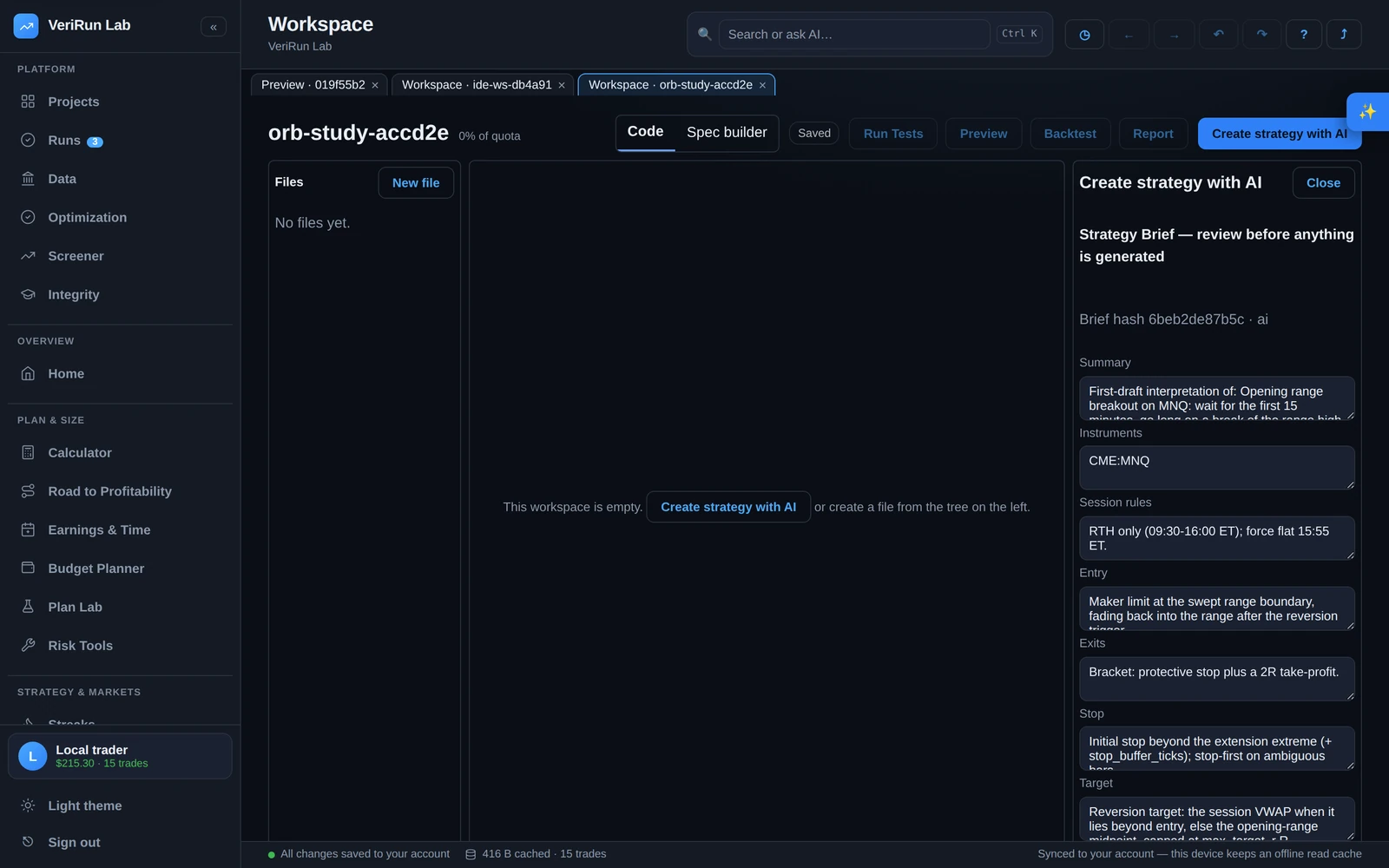
Opening the builder
The builder is part of the workspace IDE. Open any workspace and click Create strategy with AI in the header (an empty workspace also offers the same button in the middle of the editor). The builder opens in the right rail and walks you through four stages: idea, clarifying questions, Strategy Brief, and code review.
Stage 1 — Describe your idea
Under “Describe your strategy in plain English”, write the idea the way you would tell a colleague. The placeholder shows the level of detail that works well:
Example idea
“Fade failed sweeps of the overnight low on ES: after a sweep reclaims, short the retest of the sweep level, stop above the extreme, take profit at 2R, RTH only.”
You don't need to specify everything — anything you leave out becomes either a clarifying question or a written-down assumption. Press Continue when you're happy with the description.
Stage 2 — Clarifying questions
Instead of guessing, the builder asks. The Clarifying questions stage lists short, specific questions about the parts of your idea that were ambiguous — session boundaries, what exactly counts as a “sweep”, how to size, when to stand down. Each question is a simple text box.
You have two ways forward:
- Continue to the Brief — submits your answers and builds the Brief from them.
- Generate a first draft with assumptions — skips the questions entirely. The AI proceeds, but every choice it makes for you is stated as an explicit assumption you'll review in the next stage. This is a fast way to get a first draft when you'd rather react to something concrete.
If your text looks like instructions
The builder treats your idea as a description of a strategy, not as commands. If part of what you typed reads like instructions to the AI itself, it flags it: “Heads up — some of your text looked like instructions”, with the flagged lines listed, so nothing sneaks into the output unreviewed.
Stage 3 — Review the Strategy Brief
The Brief is the contract between your idea and the code. Its heading says exactly what it is for: “Strategy Brief — review before anything is generated”. Nothing is coded from your idea directly — only from the Brief you approve.
The Brief is a structured, editable form with these fields:
| Field | What it pins down |
|---|---|
| Hypothesis | The falsifiable claim about market behaviour the strategy is testing — drafted from your idea, and editable before anything is generated. |
| Summary | The strategy in one or two plain-English sentences. |
| Instruments | Which futures contracts it trades (comma-separated). |
| Session rules | When it is allowed to trade — sessions, cutoffs, days. |
| Entry | The exact conditions and order type used to get in. |
| Exits | How positions are managed and closed. |
| Stop | Where protection sits and how it is derived. |
| Target | Profit-taking rules. |
| Sizing | How position size is chosen. |
| Risk limits | Hard guards — max risk per trade, force-flat times, and similar. |
Read every field. If something is wrong, edit it directly and press Save Brief edits — your corrections become a new version of the Brief. When it says what you mean, press Generate code from this Brief. That click is your approval: it is the only way code generation starts. (You can also go Back to questions if the Brief reveals a misunderstanding worth re-answering.)
Generation can take a moment, and it's cancellable: while the code is being written a Stop generating control halts it and returns you to a draft you can revise or restart, so a long wait is never a dead end.
Stage 4 — Review the generated code
The proposal stage stacks everything you need to judge the code:
- The AI's own words, kept. When the AI states a short rationale for the change, it appears at the top as “The AI's stated rationale”; when it states what it planned to test, that renders as “The AI's stated test plan”; and a reason it gives for changing a test file is shown beside that file in the list (“The AI says: …”). These are the model's own statements, shown verbatim and attributed to it — they never overrule what the platform's checks found, and a proposal where the AI said nothing simply shows nothing.
- Assumptions, spelled out. The section “Generated with these assumptions — read them” lists every choice the AI made that you didn't specify. Read this list before the code — it is where surprises live.
- Consistency checks. If the generated code disagrees with the Brief anywhere, a section titled “Brief vs code mismatches — review before accepting” lists each mismatch. Warnings also appear if the proposal would change tests.
- An automatic type check. The same Python analysis that powers the editor runs over the proposed files; the status line reports either no findings or a count of findings, with markers shown right in the diff gutter.
- Whether the code actually ran. A type check cannot tell you that a strategy blows up on its first bar, so the platform runs the proposed workspace's own test suite in the sandbox and puts the answer prominently in the review panel, above the diff. It starts at “Running this code…” and settles on one of: Ran and passed; Ran and failed — do not accept as-is, which names the failing tests and relabels the accept button Accept anyway; Not verified — nothing ran, when the workspace carries no tests; or Not verified, when the check itself could not complete. The check runs in the background, so the proposal appears immediately and the verdict arrives a moment later — you never wait on it, and it never applies anything.
- The diff itself. Files are listed under three headings — Fixes production code, Changes what a test checks and Changes test setup — with new files marked (new). Every heading is shown even when it is empty (“No test files touched — nothing the tests check has changed”), because an empty category is an answer and a missing one is not. Selecting a file shows a side-by-side diff of your workspace's current content against the proposal; a test-setup diff opens expanded rather than waiting to be clicked.
Production code, tests and test setup are accepted separately — here's why
There are three accept buttons, and they are never combined:
- Accept production code — applies only the production files.
- Accept tests — applies only the test files.
-
Accept test setup — applies only the fixtures that run around your
tests (
conftest.pyand test helpers).
A button is greyed out when the proposal has no files of that kind, so you can see at a glance which decisions are still yours to make.
The reason is simple: the tests are the leash on the code. In VeriRun Lab, a strategy cannot run on data until its required tests pass — so if a single click could apply new code and new tests together, generated code could quietly rewrite the very tests that are supposed to catch its mistakes. By forcing separate, deliberate accepts, the app makes sure a change to the tests is something you consciously reviewed and chose, never a side effect. When you review a proposal, give the test diff the same attention you'd give the production diff: ask “would these tests still catch the failure modes I care about?”
Test setup is its own button for a reason of its own.
conftest.py and test helpers run before every test and can
replace the very code under test, so a suite can go green without the bug being
fixed — and no automatic check can tell that apart from an ordinary repair. It used
to ride along under “Accept production code”, because a
conftest.py at the root of your workspace is not inside
tests/. Now it is a separate, deliberate click, and its diff is opened
for you rather than left as a row to notice.
Revise or reject
- Revise — sends the proposal back with your review; a new proposal replaces the current one. Use it when the shape is right but details are off.
- Reject proposal — discards everything and returns you to the idea stage with a clean slate.
After you accept, the files appear in the workspace file tree like any other code —
fully yours to read, edit and test. Until you do, the proposal waits as a draft,
reachable again from the AI-drafts inbox at /app/drafts
if you navigate away. The natural next steps are
understanding the files and
running the test suite.
What the builder will never do
It never applies code without an explicit accept, and never applies production code, test changes and test setup in one action. It does run the generated code once, in the locked-down sandbox with no network and no data access, purely to tell you whether the code works before you accept it — that run writes nothing to your workspace, costs you nothing, and cannot accept anything on your behalf. Nothing generated ever runs against real market data until you accept it and approve a version.
Checking what a strategy was asked to be
Weeks later, the code is still there but the idea behind it may not be. The workspace toolbar has a How this was made button that opens a panel showing the original prompt this strategy’s code was generated from, word for word — alongside the model that wrote it, the workspace version it produced, and whether anyone has edited the code since. Later AI changes are listed separately from that first prompt, so an old idea is never presented as a description of code that has moved on. The Strategy summary dialog carries the same block, under the strategy’s identity, so “what this strategy is” and “where it came from” are answered in one place.
Which prompt is called the original is decided by the order the changes were applied — a per-workspace counter recorded at the moment each change lands, not by comparing clock times. Clocks can be corrected backwards, and one second of that would otherwise be enough to swap the first two prompts and attribute your code to the wrong one.
The panel only shows a prompt that was actually recorded. Prompts have been saved since 8 August 2026; a strategy created before that with the builder still shows its original idea (recovered from the builder session it recorded), and anything else says plainly that the prompt was not recorded, rather than leaving a blank that looks like an empty field. Nothing is ever reconstructed or guessed — a confident-looking wrong answer would be worse than an honest gap.
There are two different reasons a prompt can be missing, and the panel keeps them apart: a change made before prompts were saved says so and names the date, while a newer change that simply carried no prompt (a connected agent can propose an edit with no message attached) says that instead. Telling you a strategy you built this morning predates the feature would be a claim you could check and find false.
A recorded prompt is workspace content: anyone who can open the workspace can read it, and nobody else can.
Choosing the model
Generation runs on your own AI key — the provider catalog covers the major labs (Anthropic, OpenAI, Google, DeepSeek, Qwen, Kimi and more) — or on platform-provided models where the operator of your instance has enabled them. A Model switcher sits right in the builder header so you can change which provider and model serve you without leaving the workspace — a faster model for quick iterations, a stronger one for a complex idea. One pick covers the whole build: the clarifying questions, the brief, the generation itself and its repair rounds all run on the model you chose, not just the step you happened to be looking at. It is saved to your account, so it sticks across reloads and devices, and the same choice appears under Settings → AI keys & connections. An explicit model pick is strict: the call uses exactly that model or fails with a clear, recoverable error — never a silent substitute. On Auto a rate-limited or blocked key does fall through to the next one you have, and the builder does not yet print a note saying your first choice was passed over — so on this surface read the model label as which model answered, not as proof of which key was tried first. (The AI dock, the AI Coach and the one-shot summary action do print that note today.) With no key configured the control offers any platform-provided models, or links you to Settings → AI keys & connections; with more than one key, it also lets you pick which key to use. The model list is derived from your provider's own catalog — never a fixed list baked into the page.
Changing a strategy you already have
The builder is for creating a strategy from a blank idea. Once you have working code, the AI Assistant is the faster way to change it: describe an edit in plain English and it reads your files, proposes a diff, runs the checks, and hands you the same review-and-accept flow — production code, tests and test setup still accepted separately.